Setting Up Nominations
Nominations let your community build the ballot for you. Instead of adding every nominee yourself, you open a form where people submit their own, and you approve the ones you want.
Nominations are available on voting pages (not polls). They are completely optional, you never need them to publish a page.
Open your vote page and click Nominations in the sidebar. There are two tabs: Nominations (submissions) and Form Builder (the form voters fill in).
1. Add your categories first
Nominators must pick a category when they submit, so add at least one category on the Manage tab before opening nominations. See Adding Categories & Nominees.
2. Build the nomination form
Go to the Form Builder tab.
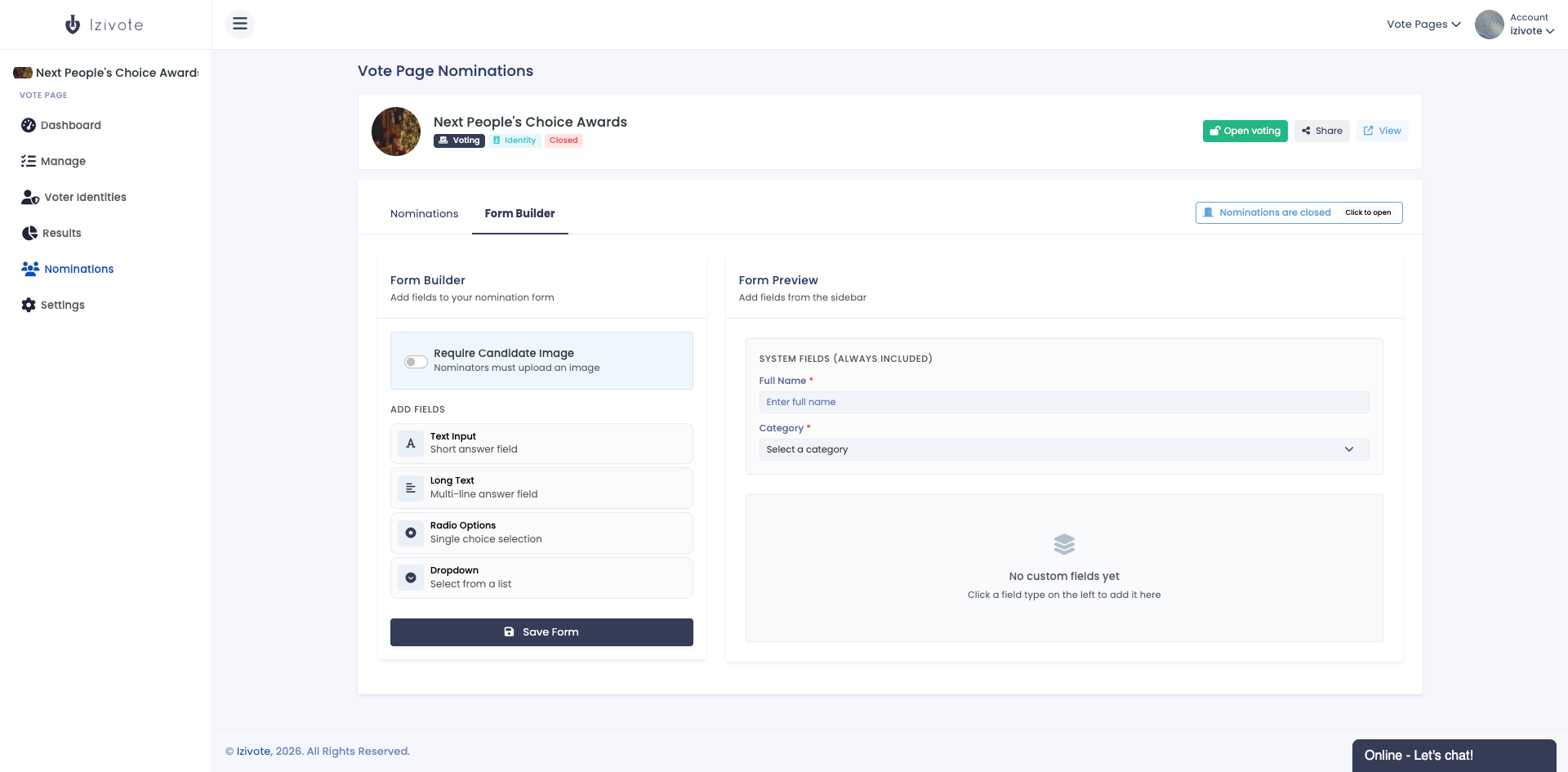
Every form always includes two system fields: Full Name and Category (both required), so a form with nothing else added is ready to save. You can also add:
- Description - click Add description at the top of the Form Preview to add optional text shown above the form, up to 300 characters. Leave it blank to show the default introduction.
- Require Candidate Image - toggle this on to make nominators upload an image.
- Add Fields - add custom fields with the field-type buttons:
- Text Input - a short answer, up to 500 characters.
- Long Text - a multi-line answer, up to 3,000 characters (about 500 words), with a counter as nominators type.
- Email - an email address (checked for a valid format).
- Radio Options - pick one from a set.
- Checkboxes - choose one or more from a set.
- Dropdown - select from a list.
Mark any custom field required to make nominators fill it in.
A field’s label can be up to 560 characters. Radio Options, Checkboxes and Dropdown fields take 1 to 30 options, each up to 300 characters.
The Form Preview on the right shows exactly what nominators will see; drag custom fields to reorder them. When you are happy, click Save Form.
3. Open nominations
On the Nominations tab, use the toggle in the top right to switch nominations on or off:
- Nominations closed - click it to open them.
- Nominations open - click it to close them again.
While nominations are open, your public vote page shows the nomination form instead of the voting interface.
Closing nominations asks you to confirm first. You can reopen them at any time.
If your page is published and not private, it also appears on the public Discover listing while nominations are open, tagged Accepting nominations, so people can find it and submit.
Opening voting automatically turns nominations off (a nomination phase and a voting phase don’t run at the same time). So the usual flow is: open nominations → collect and approve entries → close nominations → open voting.
4. Charge a fee (optional)
Nominating is free unless you say otherwise. To charge, open the Nominations tab, go to Fee, set an amount and click Save. Setting it back to 0 makes nominations free again.
Before you can charge anything you need payments set up, the same setup paid voting uses, so the money lands in your own account. See Paid Voting & Payments if you have not done that yet; until you do, the Fee tab tells you so instead of taking an amount.
Two things behave differently from a vote price:
- The fee has to be payable on its own. A voter can pay for several votes to clear the card networks’ minimum, but a nomination is a single payment, so the fee itself must sit inside the range shown on the tab.
- A page charges its fee in the same currency as its votes. If the page already has a vote price, the currency is fixed to match, and once any payment has come in the currency cannot change at all. The amount stays editable.
What the nominator sees, before they fill anything in: the amount, that you are charging it and not Izivote, and that it is not refunded if you do not accept their nomination. They pay after the form is saved.
An unpaid nomination never reaches you. It is not in your list, your counts or your export, and it is cleared automatically about an hour later. So a fee does mean fewer entries; set it to cover real costs rather than as a revenue line, unless your event is built that way.
If a fee is later refunded or charged back, a nomination you have not decided on yet disappears from your list. One you already approved stays put, marked Fee reversed, so you decide whether to keep the nominee. A chargeback never removes someone who has already collected votes.
5. Share the link
Share your page link the same way you would for voting (see Sharing & Embedding) so people can submit nominees.
Use the form’s Description to spell out who qualifies (for example “Nominees must be current members”). Clear rules mean fewer submissions you have to reject.
Next: Reviewing & Moderating.