Results & Presenting
Follow your vote in real time, export the numbers, and reveal the winners to an audience with Present mode.
Results
Open your vote page and click Results in the sidebar.
What you see here is the live count either way. What voters see is a separate choice, Show Votes in Settings → General.
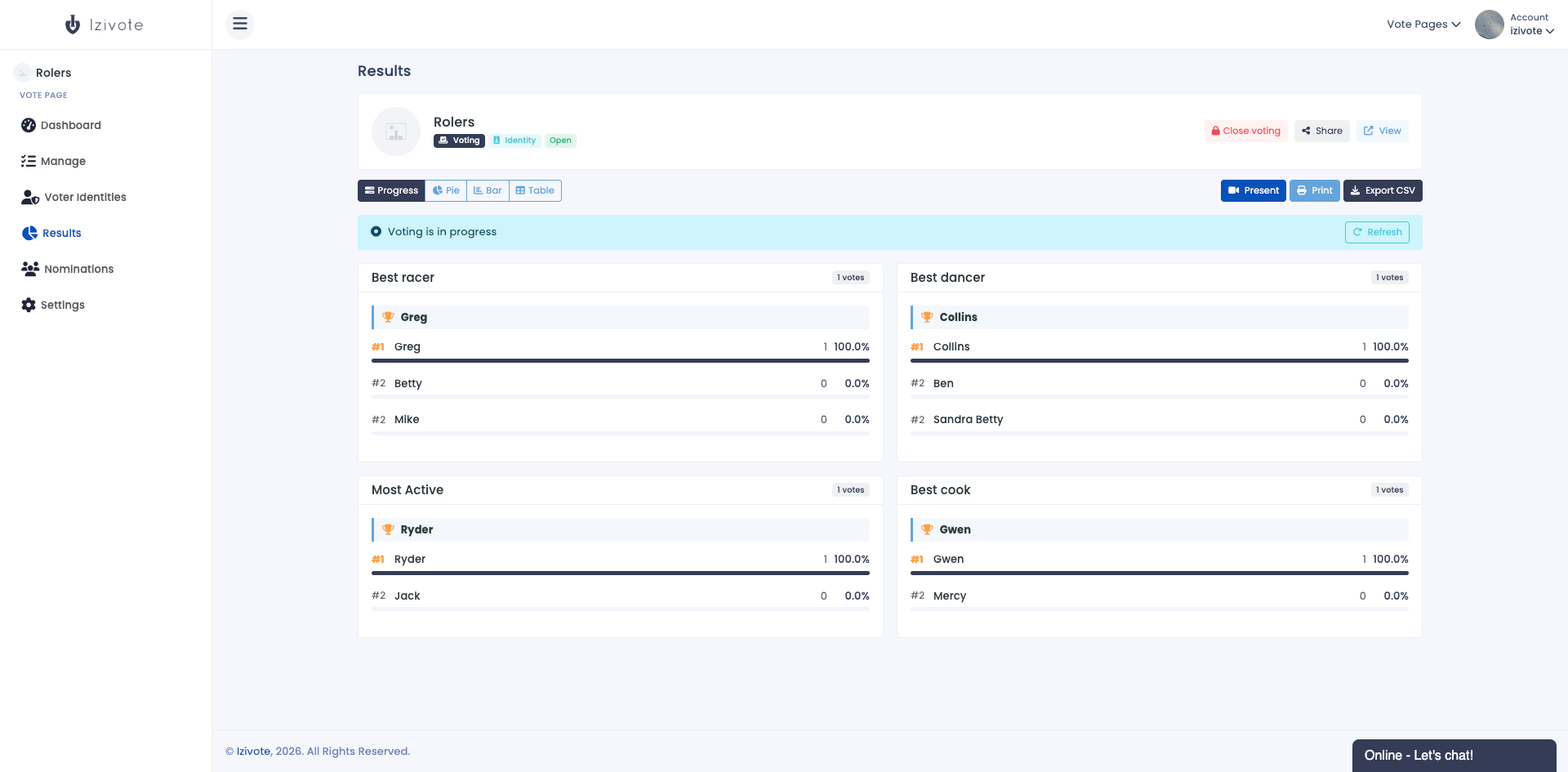
Each category is shown as a card with its total vote count and a winner banner (or a “tied” banner for a draw). Switch how the numbers are displayed with the view buttons at the top:
- List - ranked rows with a share bar for each nominee (the default).
- Pie - a pie chart.
- Bar - a horizontal bar chart.
- Table - a table of names, votes, and percentages with a total row.
Other controls:
- Refresh - while voting is open, an “in progress” banner appears with a Refresh button to pull the latest counts.
- Print - print the current view.
- Export CSV - download a spreadsheet of results (one row per nominee per category, with rank, votes, percentage, and the winner flag).
Present mode
For voting pages, Present opens a stage built for a room: a dark, cinematic reveal with your page’s own colors. Click Present on the Results tab and it opens in a window of its own, sized to sit alongside the dashboard rather than cover it, since that tab becomes your control panel. Drag the presentation window to your projector or second screen and press Start presenting to fill it.
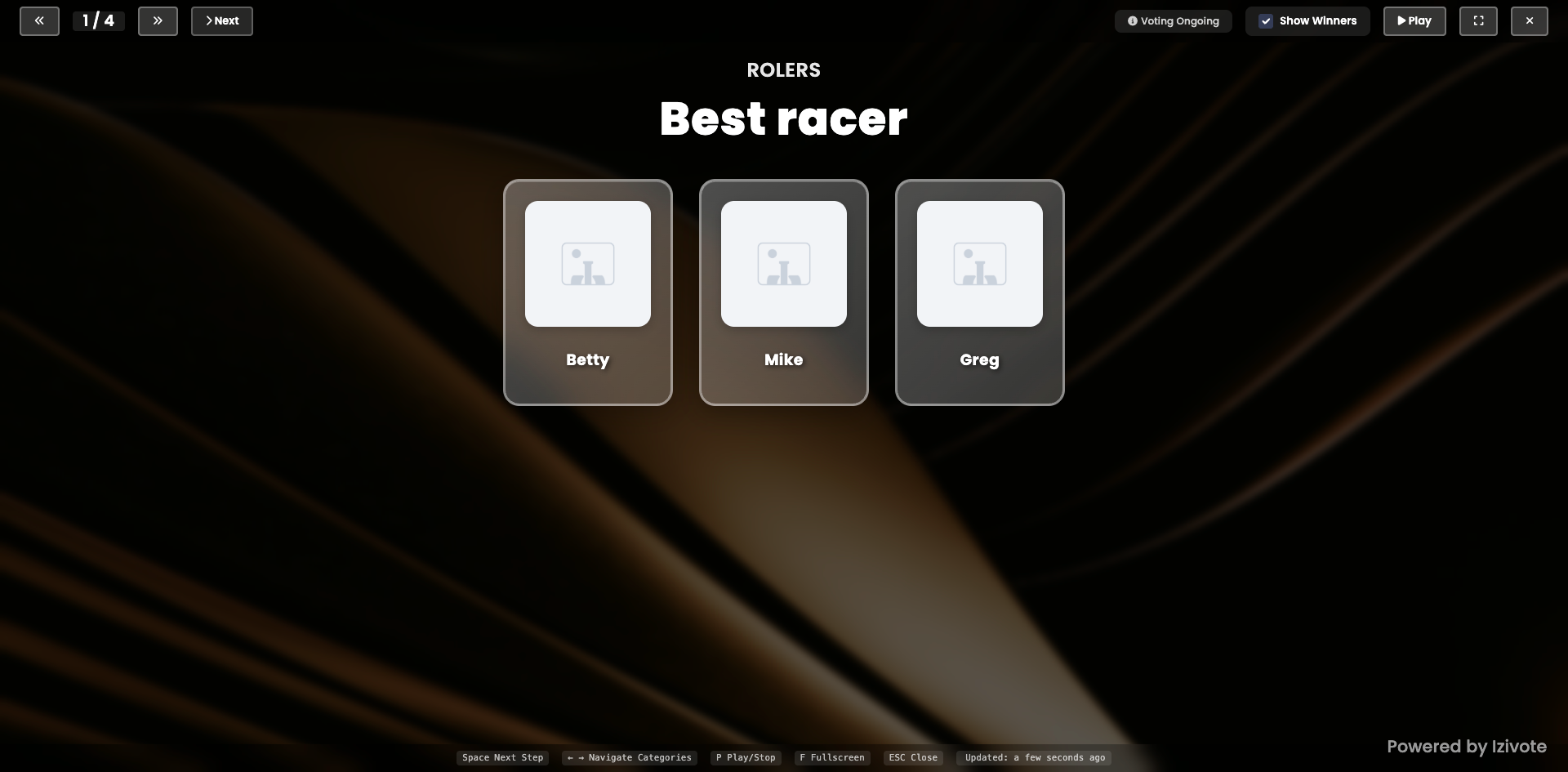
The window opens on a start card. Start presenting goes full screen and keeps the screen awake for the rest of the event; Stay windowed does the same without full screen, which is easier when you are mirroring to a second display.
Nominees appear as face-down cards. Each press of Space turns over one more, so you can talk over the suspense, and the category ends on the winner alone on stage with a crown.
Driving it from your own screen
While the presentation window is open, the Results tab it came from turns into a presenter panel: the same controls, the full standings for the category on screen, and who is about to be revealed. Keep that tab on your laptop and the presentation window on the projector, and you can run the whole show without the controls or your mouse pointer ever appearing on the big screen.
Everything stays in step automatically. Close the presentation window and the panel goes away; the presentation window keeps its own controls too, so either screen can run the show.
Stop on the panel ends the show and closes the presentation window, after asking you to confirm, since that window may be facing an audience.
Fullscreen is the one control browsers restrict to the presentation window itself. The panel’s button works if you have used that window in the last few seconds; otherwise it waits and asks you to click the presentation window, which then switches immediately. Leaving fullscreen from the panel always works.
Controls and shortcuts
- Space - reveal the next nominee, then the winner, then move to the next category.
- Page Down / Page Up - the same two, so most presentation clickers work with no setup.
- B - step back.
- A - reveal them all at once.
- Left / Right arrows - move between categories.
- P - play or pause the automatic run through every category, on a loop.
- W - end each category on the winner, or not.
- R - results on the cards, or not.
- F - full screen.
- ? - the full key list, any time.
- Esc - close that list. It deliberately does not end the show, so a stray press cannot take down a presentation; use Stop on the panel for that.
Any card can also be clicked to turn it over out of order.
The presentation window itself has no buttons, so nothing can end up projected by accident: click it once and a small strip appears at the bottom with the key list, which leaves again as soon as you click away or stop using it. Every control has a key, so you can run the show from that window alone if you close the panel.
Results decides whether the cards show vote counts and shares. It starts matching your page’s Show Votes setting and is yours to change during the show from either the panel or the presentation window, and changing it here never changes what voters see.
Winners in the control bar decides whether each category ends on the winner. While voting is still open it is switched off and cannot be turned on: the numbers can still change, so there is no final winner to crown. A live marker appears next to the category count instead, and the standings refresh every minute on their own.
Close voting before presenting final winners. If voting is still open, Present mode keeps winners hidden by design.