Creating a Vote Page
A vote page is where your vote lives. Creating one takes two or three quick choices, then you build out the ballot.
Start a new vote page
There are a few ways to begin:
- On your Dashboard, use the Create Vote Page quick action (or Create your first vote page if this is your first one).
- From the Vote Pages list in the sidebar, click Create vote page (top right).
You will land on the “Create your vote page” screen, a short form of two or three steps, depending on the voting type you pick.
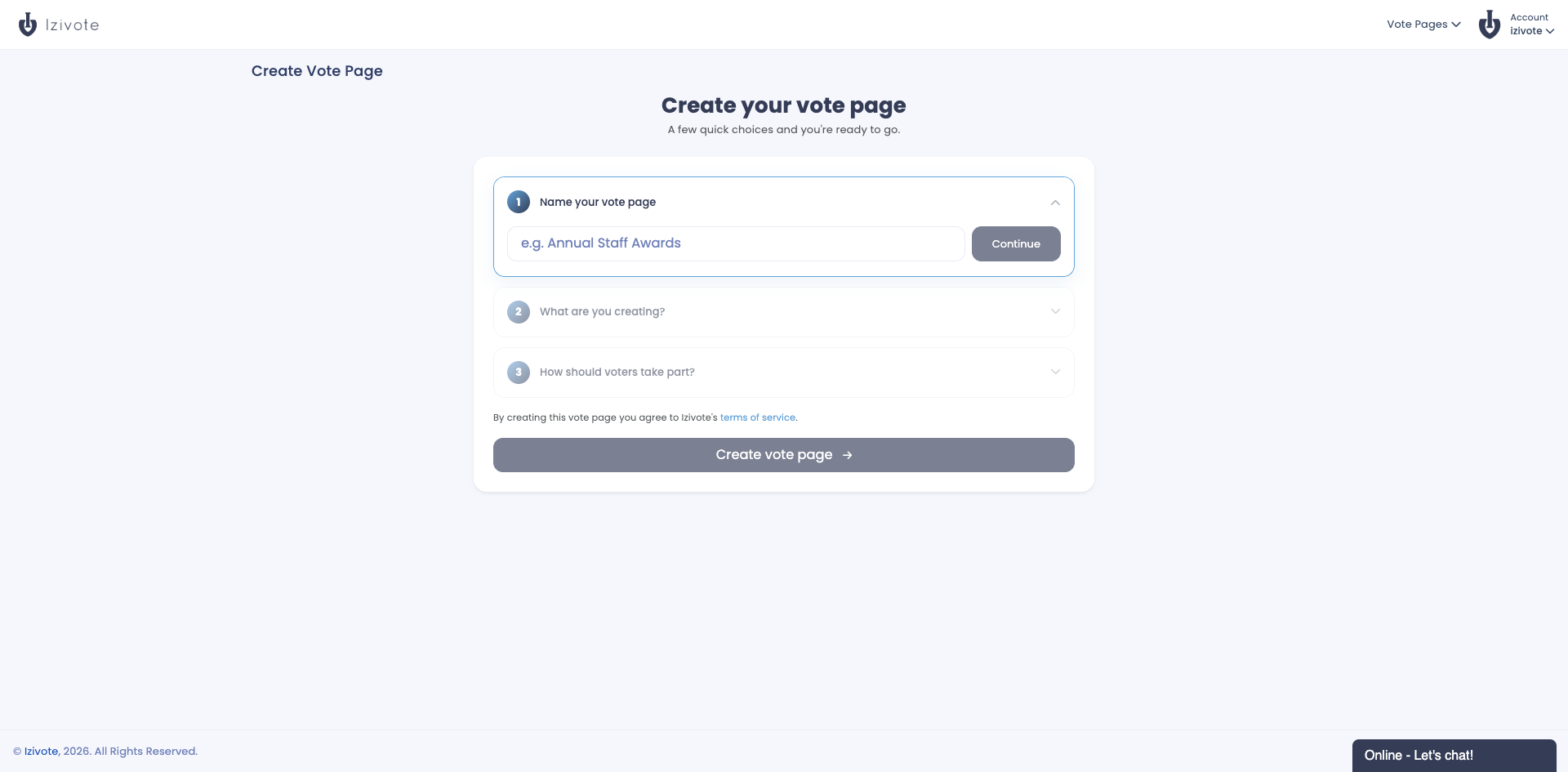
Step 1 - Name your vote page
Enter a name (for example Annual Staff Awards). This is the title voters see. Click Continue.
You can change the name later, so don’t worry about getting it perfect now.
Step 2 - How should voters take part?
Choose the voting type, which decides how voters are identified. This cannot be changed later.
| Voting type | How voters take part |
|---|---|
| Open | Anyone with the link can vote anonymously. No login. |
| Paid | Voters pay per vote by card. Great for fundraising and fan votes. |
| Login | Voters sign in with a login you choose. One vote per person. |
| Identity | Only people you allow can vote, using an ID you assign (or your own SSO/SAML or OAuth). |
Step 3 - How should voters sign in?
Login and Identity pages ask one more question: which sign-in to use. Open and paid pages skip this step.
| Voting type | Choices |
|---|---|
| Login | Izivote (their own email address) or Google |
| Identity | Manual (a list of IDs or emails you upload), or OAuth or SSO / SAML on a paid plan |
The sign-in cannot be changed later either, and a choice your plan does not cover shows an Upgrade tag instead.
For a full breakdown of each type and how voters authenticate, see Voting Types & Voter Identity.
Finish
Below the steps you will see a short line noting that creating the page means you agree to Izivote’s terms of service. Click Create vote page.
You are taken straight to the page’s Manage tab, where you add your categories and nominees.
Your plan limits how many vote pages you can have. If you have reached the limit, you will see a message to upgrade your plan before you can create another. See Subscriptions & Plans.
Next: Adding Categories & Nominees.