Themes & Customization
Make your vote page match your brand. Cover image, colors, template, and background are all set on Settings → Theme (colors, template, background) and Settings → General (cover photo).
Open your vote page, click Settings in the sidebar, then the Theme sub-tab.
Cover image
On the General sub-tab, click the page image or Change image, or drop an image onto that area. It is resized and saved straight away, and a Saved note confirms it. This image represents your page in listings and shares.
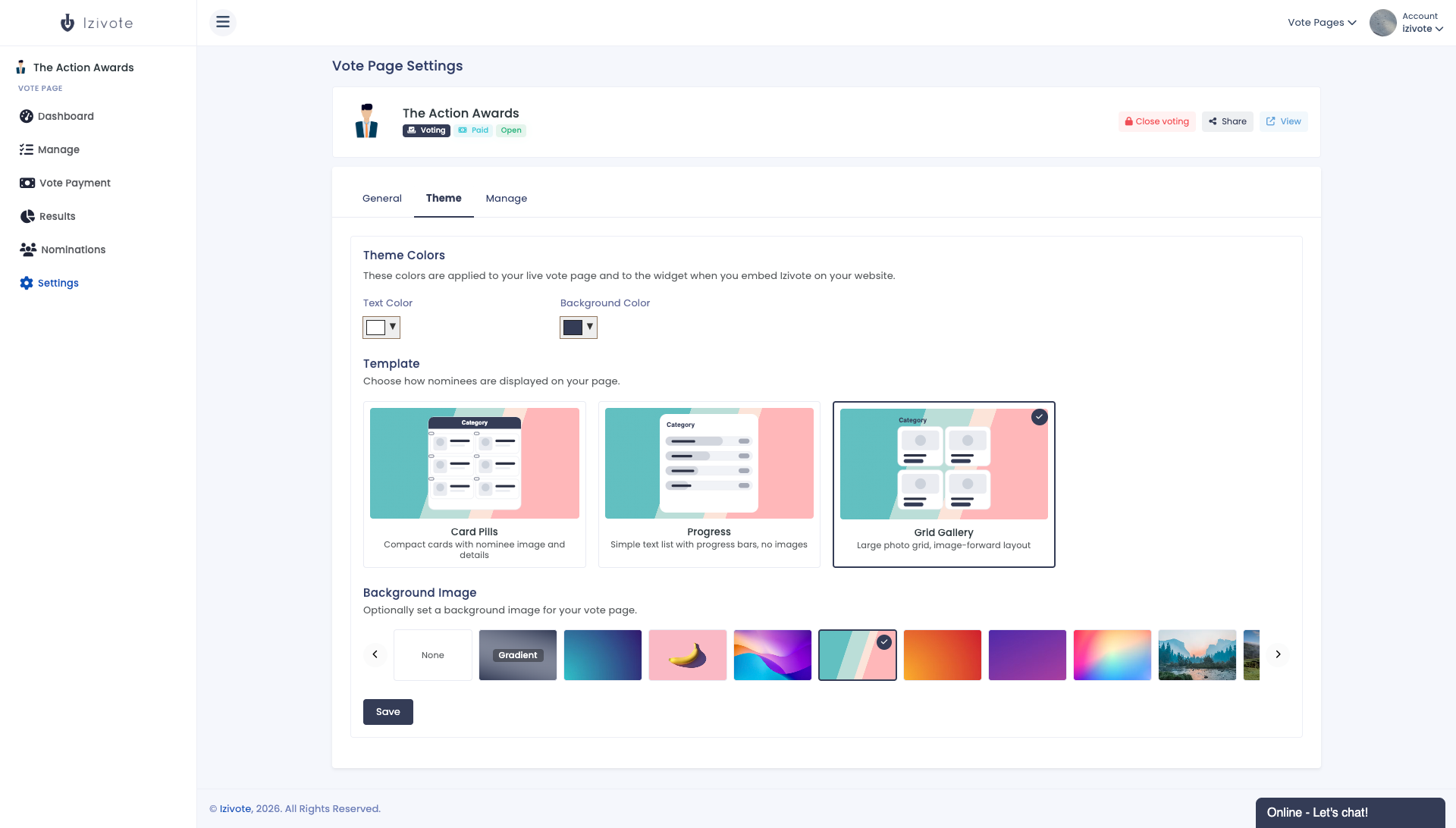
Theme colors
Under Theme Colors set:
- Text Color - the color of text on your page.
- Background Color - the page background.
Each has a hex input and a color picker. These colors also apply to the embedded widget when you put Izivote on your own website.
Template
Under Template, choose how nominees are displayed. Pick from the template cards (each shows a live preview):
- Card Pills - photo cards grouped in a rounded, collapsible category card. The default and most versatile look.
- Progress - compact rows with live progress bars. Great for quick questions and text-only options.
- Grid Gallery - large photo cards in a gallery grid. Best when strong imagery matters.
The selected template shows a check and a highlighted border. Click Save.
Background image
Under Background Image you can optionally set a page background:
- None - use the background color only.
- Gradient - a branded gradient.
- Preset images - scroll the thumbnails and pick one.
Click Save to apply.
Preview any change with the Preview button on the Manage tab before you publish, and remember to Publish changes so voters see the new look.
Custom public link (slug)
You can change the URL of your page (for example izivote.com/v/staff-awards) on Settings → General under Link. Every page gets its own link on every plan, and changing it is a paid-plan feature. See Managing & Settings for details and the warning about changing an existing link.