Voting Types & Voter Identity
The voting type you chose when creating the page decides how voters are identified and how Izivote stops the same person voting twice. It is fixed for the life of the page. This page explains each type and, for Identity pages, how to set up your voter list.
Every type also has a vote frequency, set under Manage: how often a voter may vote in each category, either once only or once every hour, day or week. On a paid page it is the free vote that comes round, and paid votes are never limited.
The four voting types
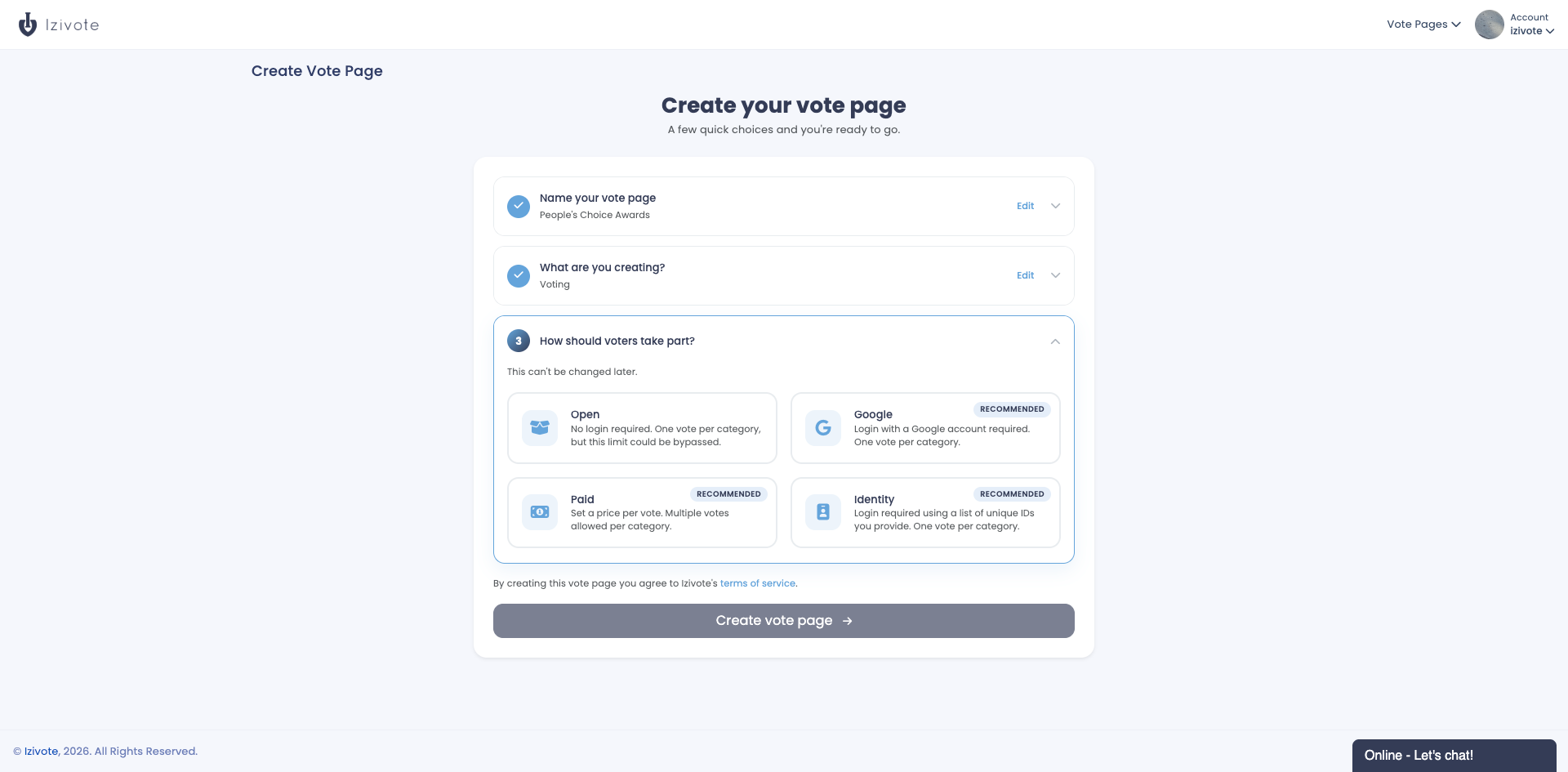
Open
Anyone with the link can vote, no login required. Izivote uses a browser cookie to keep one anonymous voter from voting repeatedly. Best for casual community polls where you want the widest reach and the lowest friction.
Paid
Voters pay per vote with a card. When they vote they enter their email, pick one of your prices and how many of it they want, then pay securely (payments are powered by Stripe). Paid voting is ideal for fan votes and fundraising.
- You must set a price for one vote (the Vote Payment tab, or Set vote price on the Manage tab) before voters can pay.
- You can add bundles on top of it, a number of votes for a fixed price, which is how you offer a discount for paying for several at once. See Set what a voter pays.
- You must set up how you get paid first. See Paid Voting & Payments.
Adding a free vote to a paid page
A paid page can also give every voter one free vote per category, so people who will not pay still take part and still get a reason to come back. Under Manage, set Free Votes to how often that free vote comes round: once only, hourly, daily or weekly. It starts at Never, meaning every vote is paid for.
- Voters claim it by signing in with a free Izivote account, using their email or a Google account. That sign-in is what keeps free votes to one per person.
- Paid votes are never limited by the frequency: a voter can pay for as many as they like, whether or not they used their free vote.
- Free votes are counted per mailbox, so the same inbox cannot claim several by signing up with variations of one address. Temporary and forwarding addresses are not accepted for a free vote.
- Turning the setting off later stops new free votes; it does not remove ones already cast.
Login
Voters sign in with a login Izivote offers, and each person gets one vote per category, as often as your vote frequency allows. A good balance of reach and fairness. You pick which login when you create the page, and like the type it is fixed for the life of the page:
- Izivote - voters sign in with their own email address, which creates a free Izivote account for them. Nothing else is needed.
- Google - voters sign in with their Google account.
Identity
Only people you allow can vote, each using a voter ID you give them. There are three identity methods:
- Manual - you build the exact list of who may vote, as IDs or email addresses (available on every plan).
- SSO / SAML - voters authenticate through your organization’s SAML 2.0 identity provider (Okta, Azure AD, and similar). Paid plans, currently in Beta.
- OAuth - voters log in with Google, GitHub, Microsoft, or another OAuth 2.0 provider you configure. Paid plans, currently in Beta.
Setting up an Identity page
Identity pages have a Voters tab in the sidebar, which is where you set up who may vote.
1. Choose the identity method
On the Choose Identity Method card, pick Manual, SSO / SAML, or OAuth, then click Select and Confirm.
The identity method is permanent for that vote page. Once chosen it cannot be changed.
2a. Manual: add your voter list
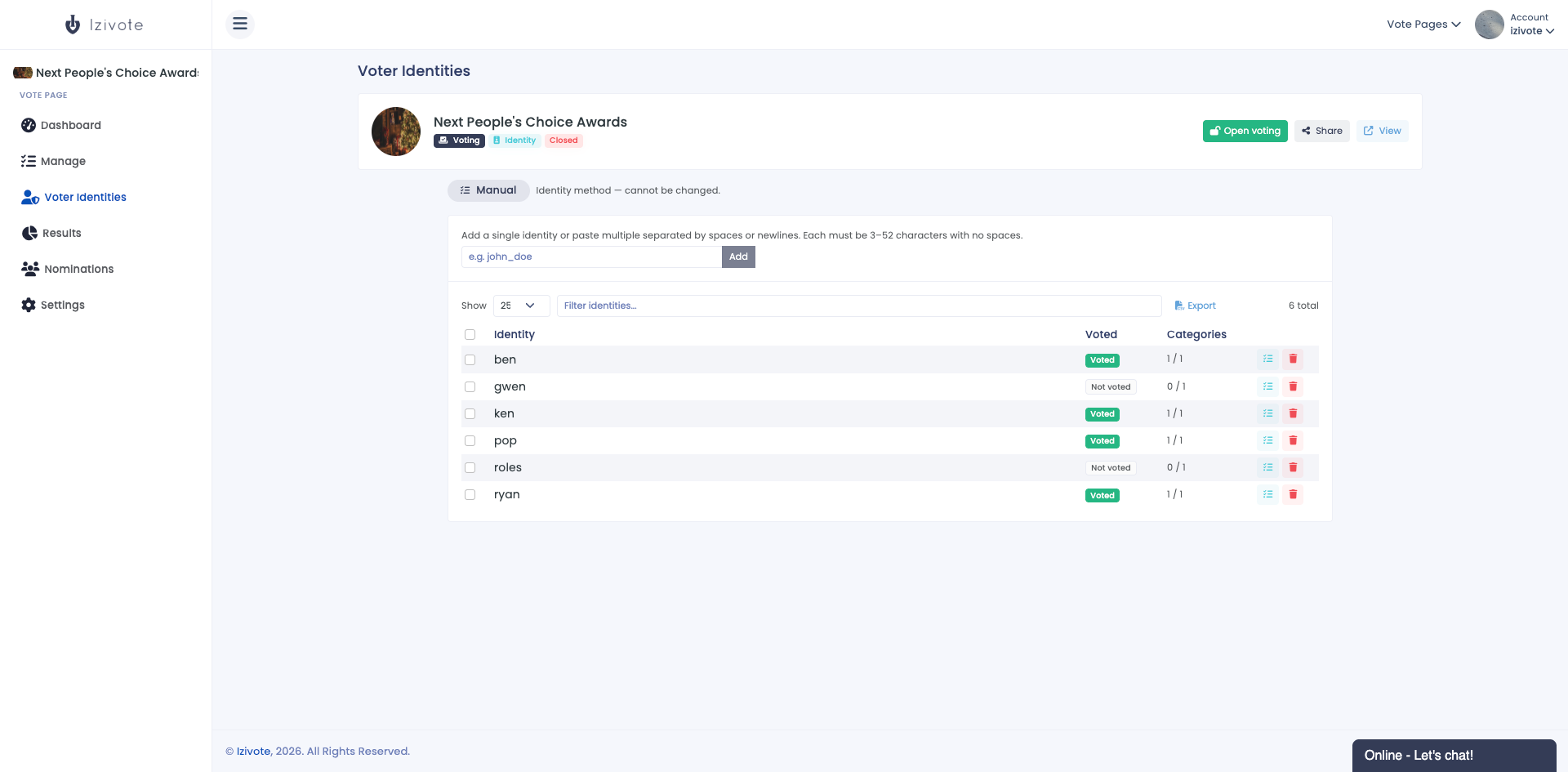
- In the add box, type a voter ID or email (for example
john_doeorjane@acme.com) and click Add. Each one must be 3-52 characters with no spaces. - To add many at once, paste a list separated by spaces or new lines, then confirm Add all.
The voters table lets you filter, page through, see who has Voted and in how many categories, view voted categories, remove voters, and Export the full list to CSV.
2b. SAML or OAuth: configure the provider
For SSO/SAML and OAuth methods you get a Voters tab and a Configuration tab. Fill in the Configuration tab with your provider details (the page shows the service-provider values you need to copy into your IdP).
There is no field to pick: each voter is told apart by the user id your provider gives them, which never changes for a person, and listed with their email where the provider sends one. For SAML, set your IdP to send a persistent NameID or the email address. A transient NameID changes at every sign-in, so Izivote refuses it rather than let one person vote again each time. Test sign-in checks the setup and loads the attributes you can use in an eligibility condition.
Once any vote has been cast, the identity configuration locks. To change it you must first delete all votes for that page.
Seeing who voted on Login and Paid pages
Login and Paid pages have a Voters tab too, listing everyone who signed in (or paid) to vote, with their email and the day they joined, and you can Export it to CSV. It deliberately shows nothing about how or when each person voted, since beside the live results that could reveal who they voted for. For the same reason, while voting is open, and for a day after it closes, the list appears once 10 people have signed in; until then you see how many have. If a voter asks to be taken off your list, remove them there: their votes stay counted.
Voters add themselves, so there is nothing to set up: before their email reaches the list, each voter is told that the organizer will see it and taps Continue to vote. On a Google or Facebook page they sign in with that account first, then confirm. A voter already signed in, from another campaign or after declining once, only confirms.
The list is part of the paid plans. On the free plan the tab shows how many voters have joined, and subscribing reveals everyone who joined so far.
Open pages are anonymous, so they have no voter list.
What a voter sees (voter’s view)
Every button that casts a vote says the same word, Vote, whatever the page asks of the voter. Only the icon changes, to show how the vote will be counted. The exception is the free vote on a paid page, which gets its own Vote free button beside the paid one.
Each category also has a button above the nominees that signs the voter in without casting anything, so it says what signing in gets them rather than “Vote”.
For the full voter experience, see How to Vote.