Adding Categories & Nominees
Your ballot is built from categories (the things people vote on) and nominees (the options inside each category, also labeled “options” in the dashboard). You build both on the Manage tab of your vote page.
Open your vote page and click Manage in the sidebar.
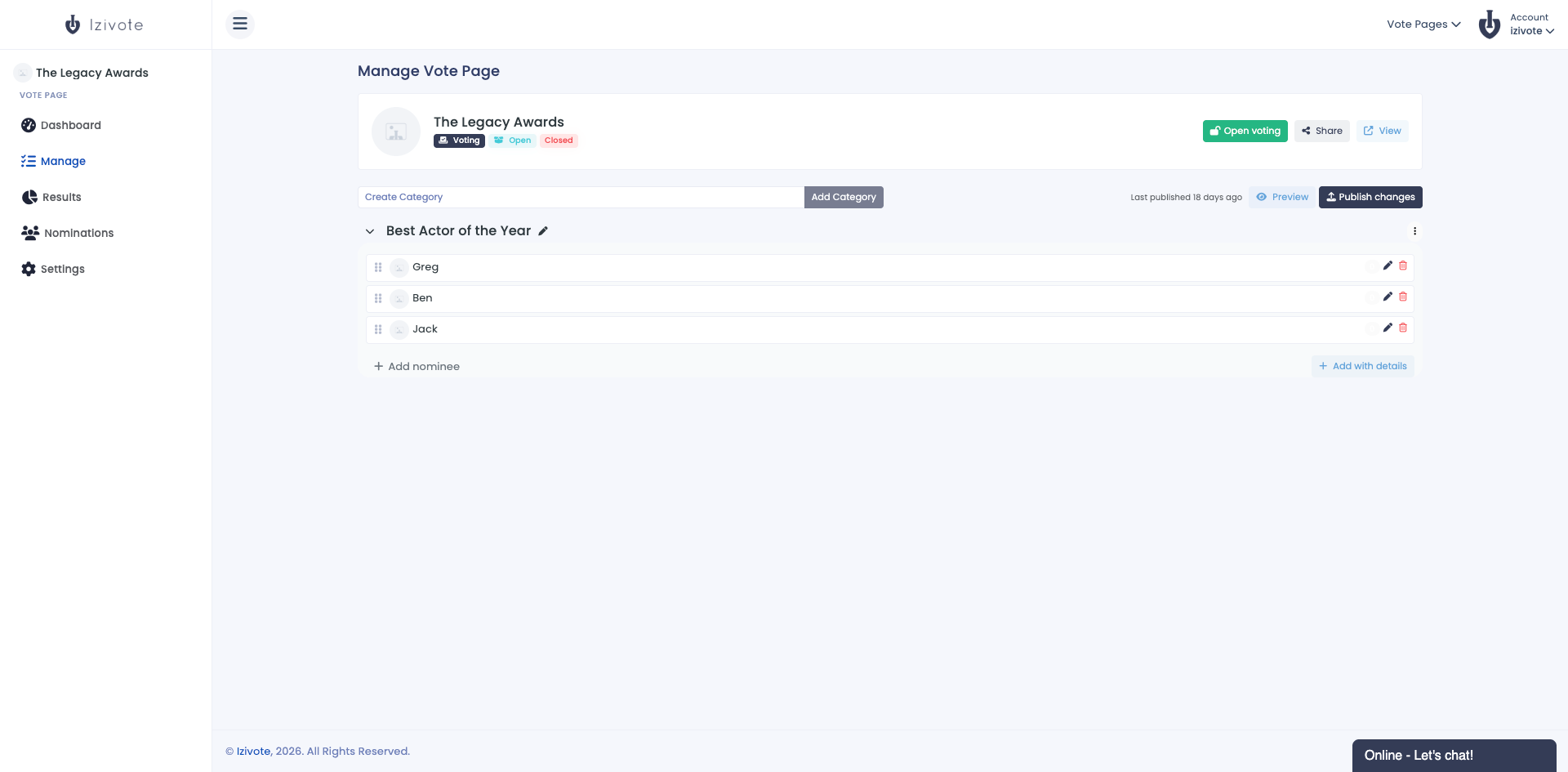
Add a category
- In the top bar, type a name into the Create Category box (for example
Best Newcomer). - Click Add Category (Add on smaller screens).
Repeat for as many categories as you need. If your plan has a category limit, a small N/limit Created counter shows how many you have used.
Reorder, rename, or delete a category
- Rename - click the category name (or the pen icon) to edit it inline. Press Enter to save, Escape to cancel.
- Reorder - use the category’s three-dots menu: Move to top, Move up, Move down, Move to bottom. Changes save automatically.
- Collapse - click the chevron to fold a category away while you work.
- Delete - in the three-dots menu, click Delete. You will be asked to confirm, since all options under that category are deleted too.
Hide a category
You can hide a category to keep it, and its nominees, off your vote page without deleting anything, for example a category you are not ready to open yet.
- In the category’s three-dots menu, click Hide from vote page.
- Publish your vote page. The category leaves your live page when you publish, not before.
A hidden category shows a Hidden badge on the Manage tab. You can keep renaming it and adding or editing its nominees while it is hidden; none of it reaches voters until you show it again. Voters cannot vote or send nominations in a hidden category, and it is left out of your results and presentations.
To bring it back, click Show on vote page in the same menu and publish again.
Hide a nominee
Hide a nominee to take them off your vote page without losing their votes, for example one who has withdrawn or been disqualified. Deleting a nominee deletes their votes; hiding keeps them.
- Click the Edit icon on the nominee’s row, turn off Show on vote page, and save.
- Publish your vote page.
A hidden nominee shows a Hidden badge. Voters cannot vote for them, and they are not counted in your results: percentages and winners are worked out over the visible nominees only, on your vote page, your results page and your presentations alike. Your results page still lists hidden nominees under their category with their vote count, so no votes go out of sight. To show them again, turn Show on vote page back on, save and publish.
Add nominees (options)
Inside each category you can add nominees two ways.
Quick add (name only)
Use the small Add option box inside the category, type a name, and press Enter. The field keeps focus so you can add several in a row. This is the fastest way to build a list.
Add with details (voting pages)
On voting pages, click Add with details to open the full form, where you can add:
- Image - upload or drop an image of the nominee.
- Name - required.
- Details - up to 10 label/value pairs (for example “Age” / “27”, “Team” / “Sales”) shown to voters on the nominee’s card.
Click Save. To edit a nominee later, click the pen icon on its row.
Reorder and move nominees
- Drag the grip handle to reorder nominees within a category.
- Drag between categories to move a nominee - Izivote closes the gap in the old category and slots it into the new one. Ordering saves automatically.
- You cannot move a nominee that already has votes into a different category.
Rename or delete a nominee
- Rename - click the nominee’s name to edit it inline (Enter to save, Escape to cancel).
- Delete - click the trash icon on the row and confirm.
Import a list
Already have your nominees in a spreadsheet, a form’s responses, or another awards platform? Bring them in at once instead of typing them.
- On the Manage tab, click Import beside the Create Category box (a new, empty page also offers Import a list).
- Copy the cells from Google Sheets or Excel and paste them into the box, or drop in a CSV file.
- Check the line that says how your columns are read (click Change to fix any), then the Preview, which shows every category and nominee that will be added, with a small preview of each image.
- Click Import.
Your list needs a header row and one row per nominee:
| Column | What it holds |
|---|---|
| Category | The category name. A name already on your page adds to that category. |
| Nominee | The nominee’s name. Leave it empty to add just the category. |
| Image | Optional. A public link to the image, or a Google Drive link shared with anyone. |
| Anything else | Each extra column becomes a nominee detail, like Department or Country, shown on their card. |
As on the nominee form, a nominee takes up to 10 details, each a label of up to 25 characters and a value of up to 35. Columns about the person who made a nomination, like their email or phone number, are ignored by default, since details show publicly.
Importing only ever adds. A nominee already in that category is left as it is, repeated rows are merged into one, and anything over your plan’s limits is shown in the preview and left out. Download the template from the import page to start from a blank sheet.
Messy list? The import page has a ready-made prompt for ChatGPT or Claude. Copy it, paste it into the chatbot with your list, and paste the result back. Your list goes to the AI service you choose, not through Izivote.
Images load straight from the link, so it must be a public image link. Google Drive links work when the file is shared with Anyone with the link; other links that need a sign-in will not load. The preview checks each image link before you import and tells you which ones cannot be used and why, such as a Drive file that is not shared publicly; after you change the sharing, click Check again. Any image that still does not load is listed after the import, where you can drop in the image files instead, each named after its nominee (for example Jane Doe.jpg).
Export your list
On the Manage tab, click Export beside the Create Category box to download every category and nominee, with their details and image links, as a CSV. It is in the same format the import reads, so you can edit it in a spreadsheet and import it into another vote page.
Ready to go live?
To publish a vote page you need at least one category and at least two nominees. Izivote tracks your remaining setup steps for you, see Publishing & Opening Voting.
Your plan limits how many categories and nominees you can add, and how many total votes you can collect. If you hit a limit you will see a counter and a prompt to upgrade. See Subscriptions & Plans.
Paid pages: set the vote price
On paid vote pages, use Set vote price in the Manage top bar to set the price for one vote, plus any bundles you want to offer. You must set payments up first, see Paid Voting & Payments.