Publishing & Opening Voting
Going live is two separate steps in Izivote:
- Publish - make the page exist at its public link.
- Open voting - let voters actually cast votes.
Keeping them separate means you can publish a page for people to preview, then flip voting on the moment you are ready.
Setup checklist
Izivote will not let a page go live until the essentials are in place. The minimum is at least one category and at least two nominees.
At the top of your vote page you will see a setup status badge showing how many steps are left (for example “2 setup steps left”). Click it for a checklist of what to finish, each item links straight to the right screen. Depending on your voting type the checklist may also include:
- Choosing an identity method and adding your voter list (Identity pages).
- Connecting a payout method and setting a price per vote (Paid pages).
- (Optional) turning on the nomination form (voting pages only, never required to publish).
When no required steps remain, the badge disappears and the go-live actions become available.
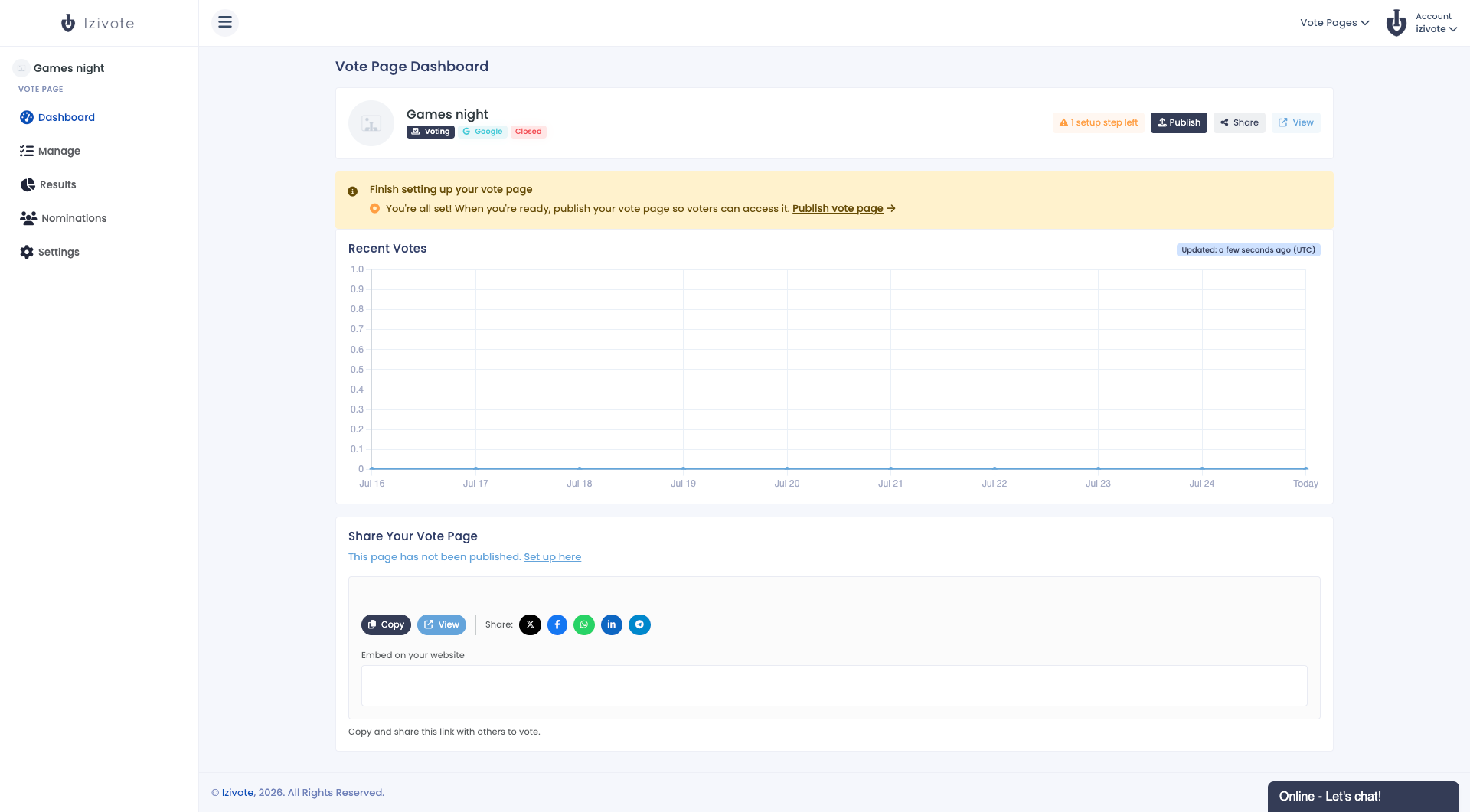
Publish
- On the Manage tab, click Publish (top right). If you have published before and made changes, the button reads Publish changes and re-publishing pushes your latest edits live.
- You can also publish from the header bar on any tab.
Before publishing, use Preview on the Manage tab to open the current draft in a new tab exactly as voters will see it.
Once published, your page is live at its public link, but voting is still closed until you open it.
Open voting
Click Open voting in the page header (it turns into Close voting once open). Voting is now accepting votes.
- If your page currently accepts nominations, opening voting will turn nominations off - Izivote asks you to confirm this first.
- You can Close voting at any time; voters can no longer cast votes, and results stay intact.
You can also toggle voting from Settings → General with the Voting Open switch.
Automatically close voting
On Settings → General, when Voting Open is on you can tick Auto Close Voting and pick a date and time. Voting closes itself at that moment, so you don’t have to be online to end the vote.
Quick reference
| State | What voters see |
|---|---|
| Not published | A “Coming Soon” holding page. |
| Published, voting closed | The page and nominees, but no way to vote yet (or a “Voting Closed” button). |
| Published, voting open | The full page with working vote buttons. |
Next: Sharing & Embedding.